
Will there still be a church directory?
The directory was nice, but Subsplash does not offer that for security reasons as the liability of sharing everyone’s information is pretty risky. The workaround is to use direct messaging in the app to contact someone directly for their information. You can always ask someone to share a phone number, email address, or mailing address that way.
Where can I go to see meal trains?
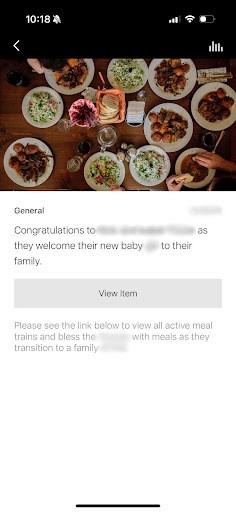
Moving forward, in order to see an active list of running meal trains you can view them anytime at https://hub.emmausroadsf.com/meal-trains. However, we will be sending a notification to the app with a button to that page along with an announcement anytime there is a new meal train link to share.
Where can I see the Church Newsletter each week?
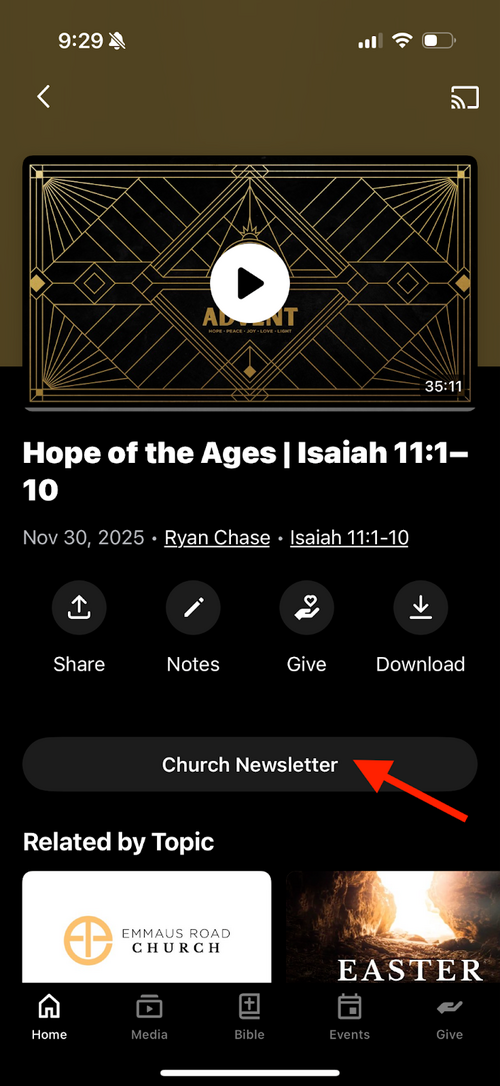
In order to find the Church Newsletter as soon as the Sunday Sermon is uploaded:
- Open the Church App or go to the church website
- Go to the “Current Sermon Series” on the media tab of the app or the "Sermons" section of the website and click on the latest sermon
- Scroll down below the sermon video
- Click the button that says “Church Newsletter”
Why am I not getting any notifications?
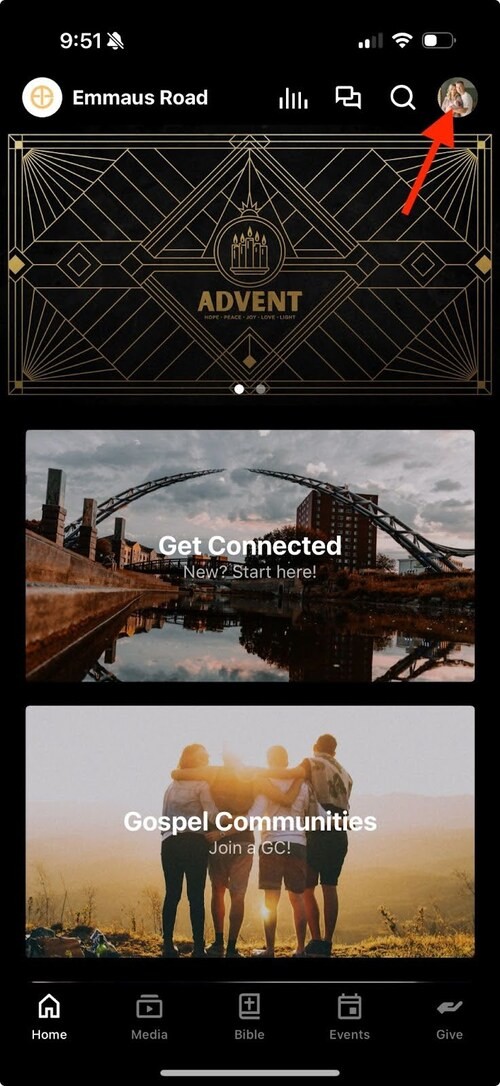
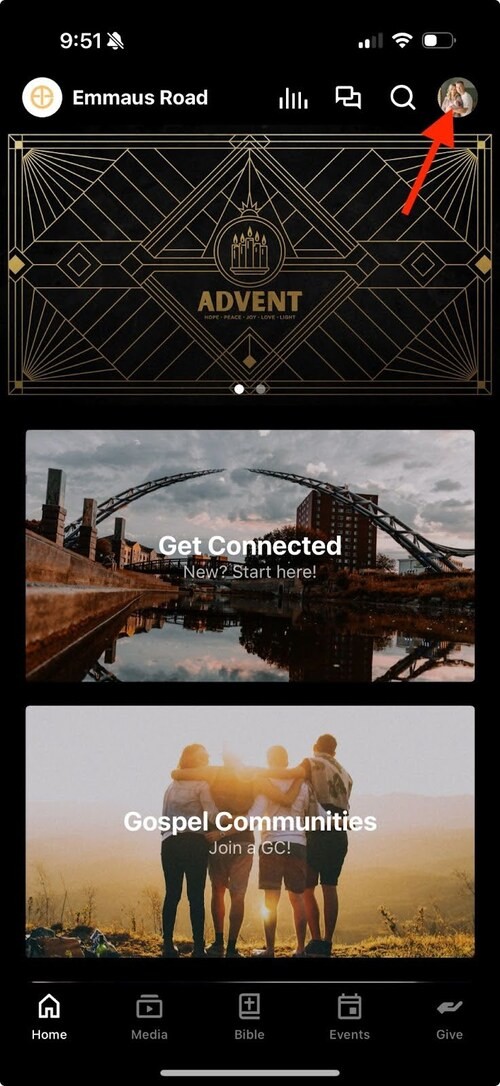
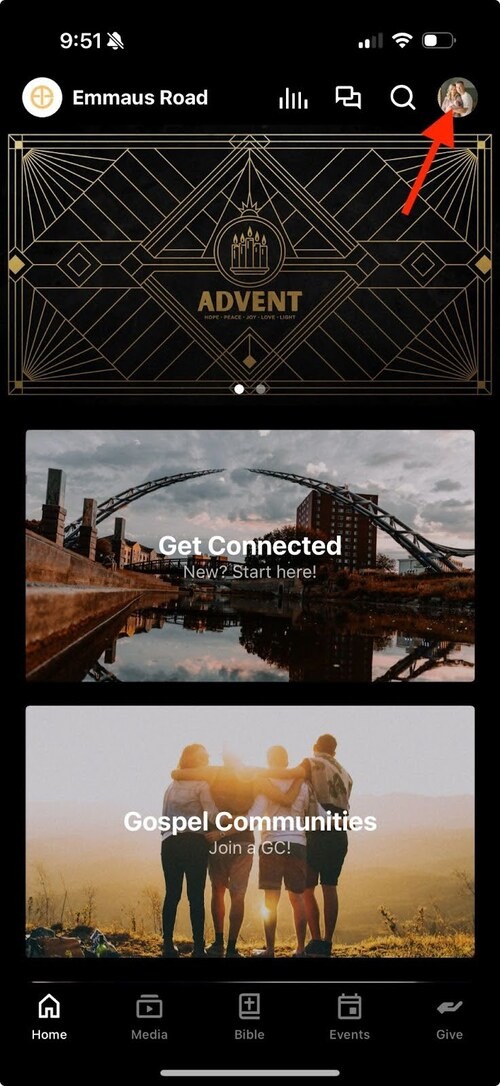
It could be that you are not signed in yet. Please download the app and click the circle on the top right and either create your account or sign in. Once you have signed in, you will begin to receive notifications for your volunteer requests and other churchwide announcements.
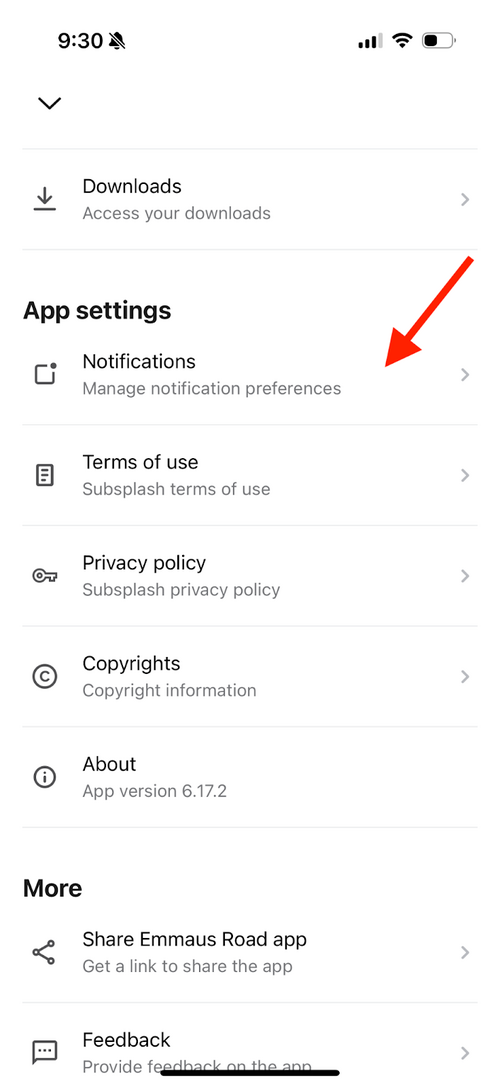
It could also be that you need to toggle this on notifications. Please go to your profile, scroll down to notifications and toggle the “General” button on:
It could also be that you need to toggle this on notifications. Please go to your profile, scroll down to notifications and toggle the “General” button on:

Where can I go to find notifications?
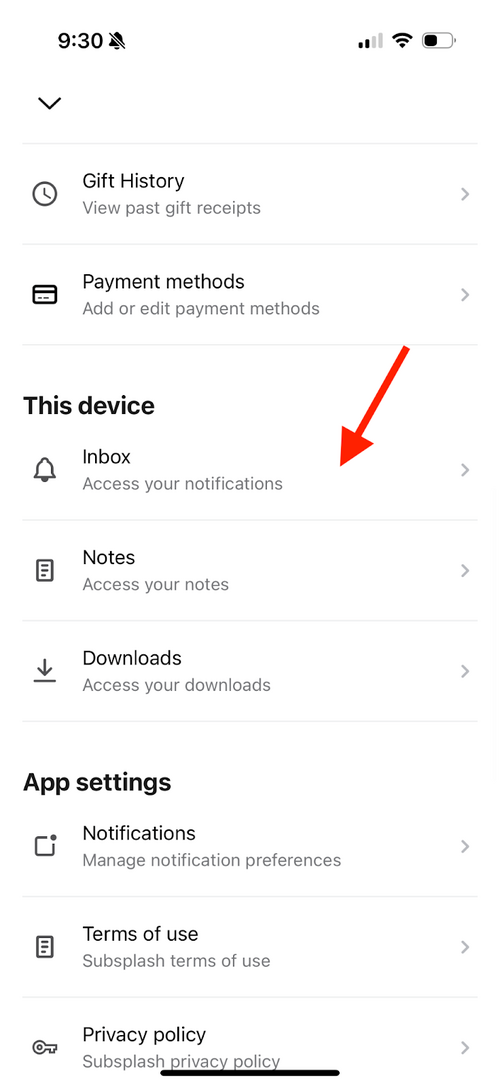
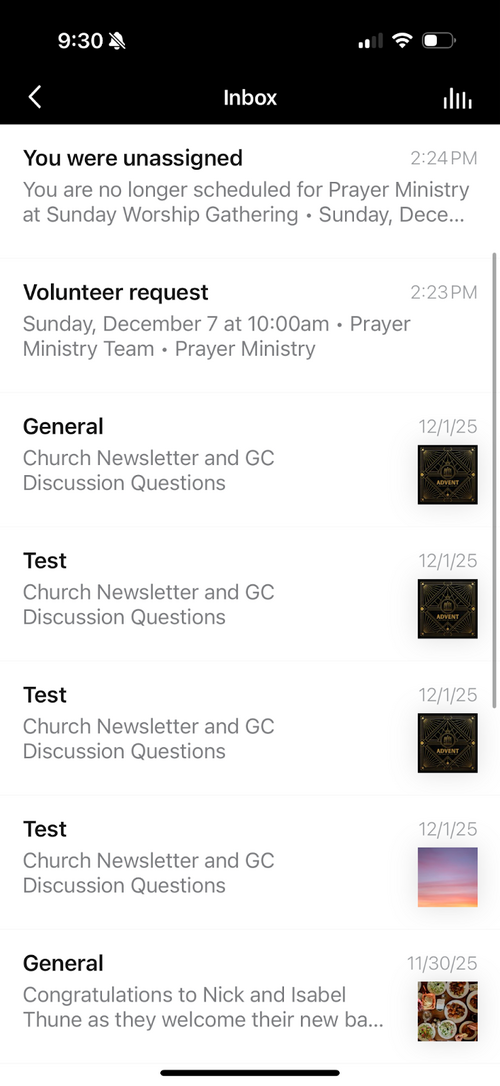
In order to find a notification after it has left the home screen of your phone (like an announcement of a meal train or a church wide message) you can click your profile, scroll down to your inbox and view them there.
Where can I see my volunteer requests and set my availability?
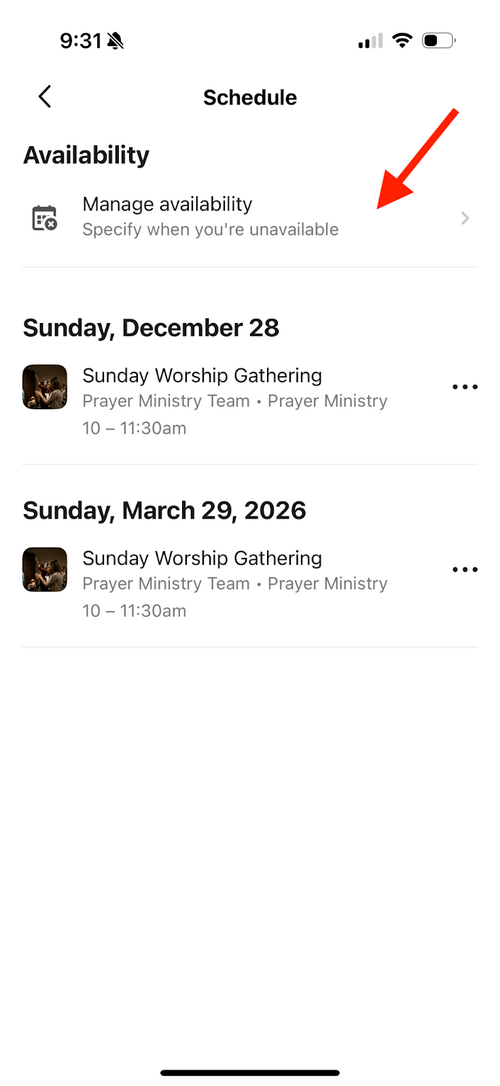
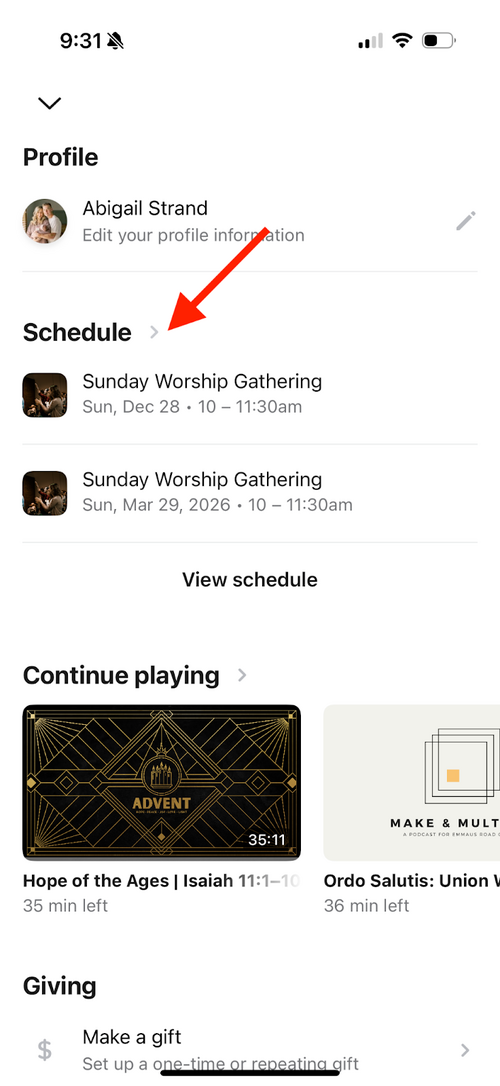
In order to see your volunteer requests you can click on your profile circle in the top right, scroll down to “Schedule” and click it. Then you will see “Availability” and the option beneath that to “Manage availability”. There you can set any unavailable dates and see all of your upcoming volunteer commitments.

If I’m a GC Leader, how can I add people to my messaging group?
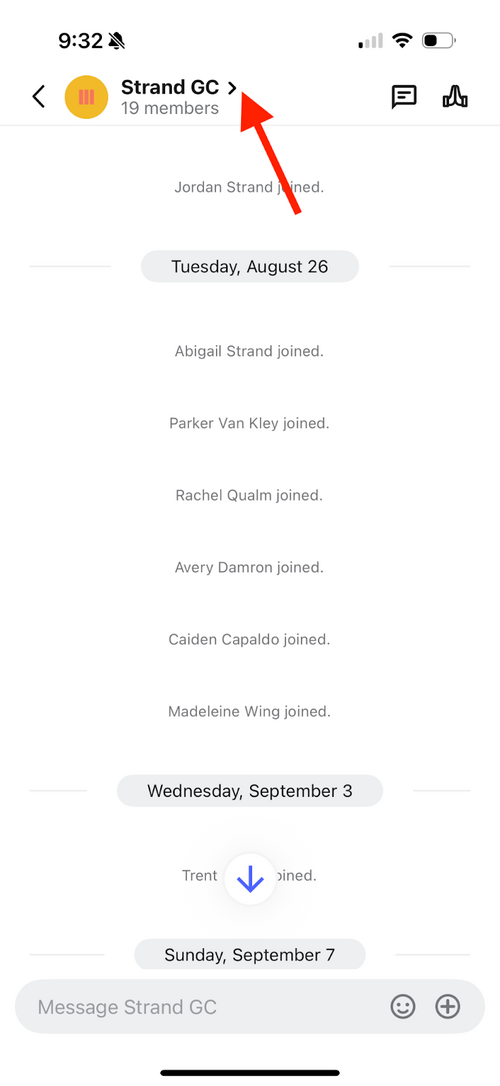
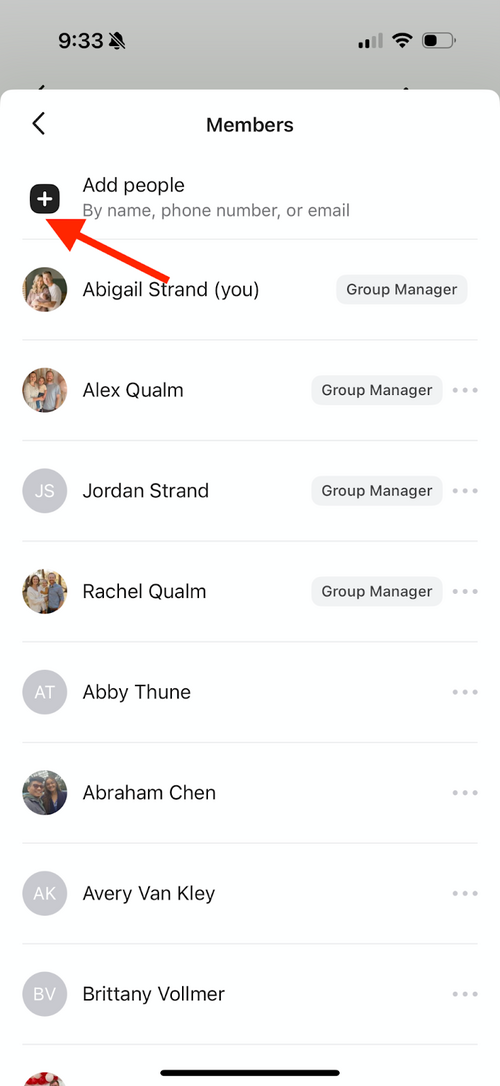
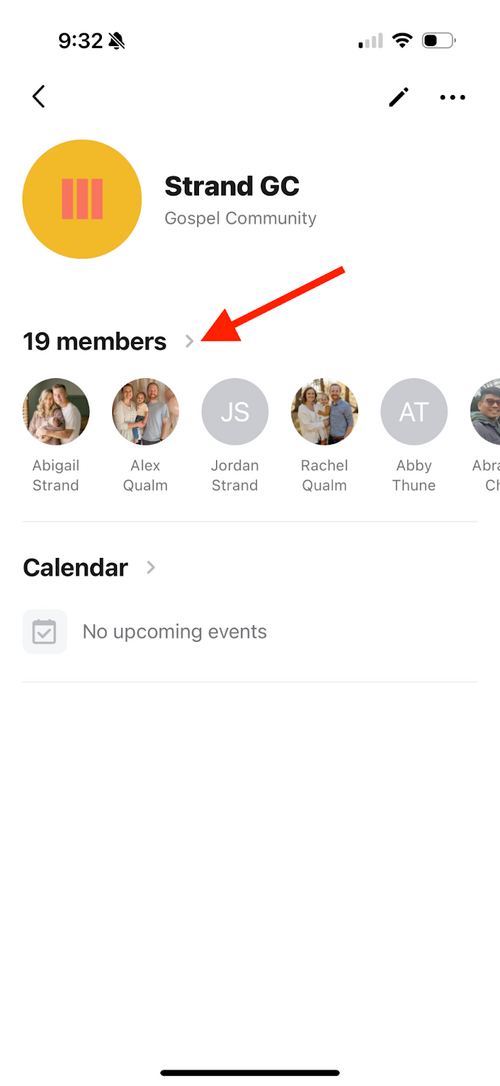
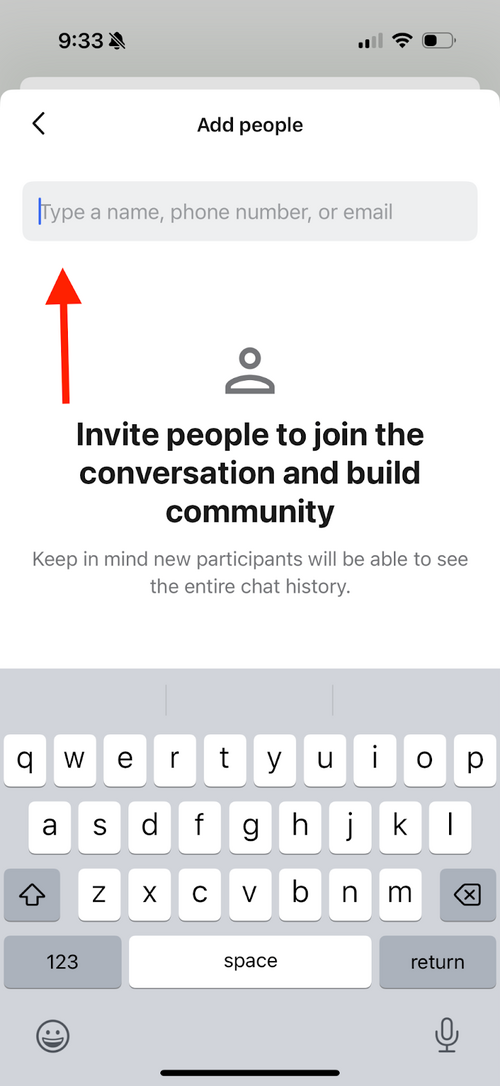
In order to add someone to a group, you can go to your group, select the arrow next to it, then again next to the number of members, click “Add people”, and type their name in from there.
How can I post events to my GC?
Currently as of December 2025, this feature is working to get fixed. Once the fix has been made, there will be an announcement to let leaders know they can post them again. Only leaders of a group are able to post events.
Group events will look like this:
Group events will look like this:
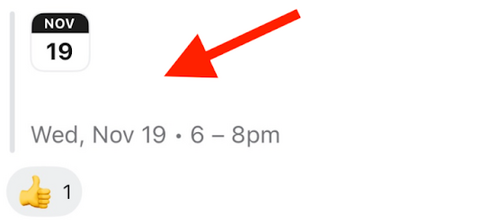
And you must click into them to see additional details.
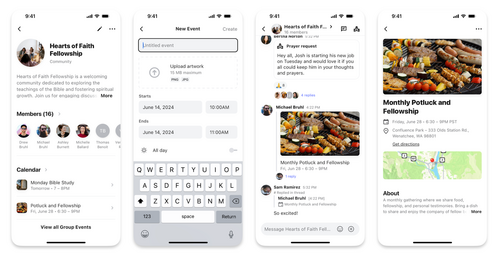
Please see here for more details on how to create a group event if you are a leader.
How can my GC RSVP to events?
As a simple way to RSVP for events if your group would like to continue to do that, you can select an emoji and react with a thumbs up, for example, to say if you plan attend.

Why am I not yet added to a messaging group?
It is possible that you are still not signed in to the app or that you have created an account and signed in with a different email address than was migrated from Realm.
If you are not seeing groups that you are supposed to be in, please contact your GC leader to get you added or the ministry team leader.
If you are not seeing groups that you are supposed to be in, please contact your GC leader to get you added or the ministry team leader.
Why is there a processing fee on giving?
Processing fees have always been a part of our online giving. With Realm, the church covered those expenses. The difference now is that Subsplash makes that processing fee visible and gives you the option to cover it if you would like to.
What is the best way to post to Marketplace?
In order to minimize the amount of notifications that come through for people in the group, it is best to post one message and any additional details in a thread of that same message.
To do this, please begin by going to Marketplace (this example is just screenshots of a direct message but you can follow these steps in any chat)
To do this, please begin by going to Marketplace (this example is just screenshots of a direct message but you can follow these steps in any chat)
- Click the plus sign on the right hand side:
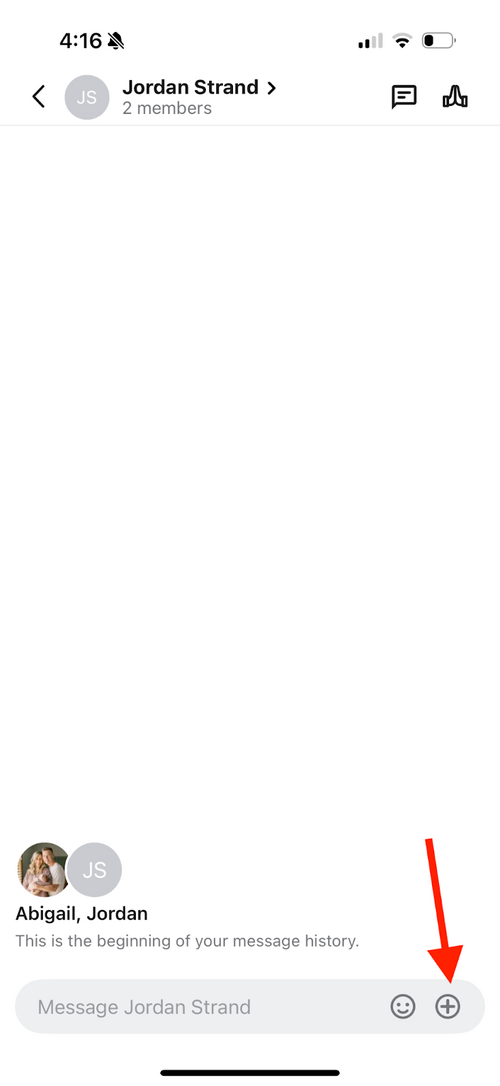
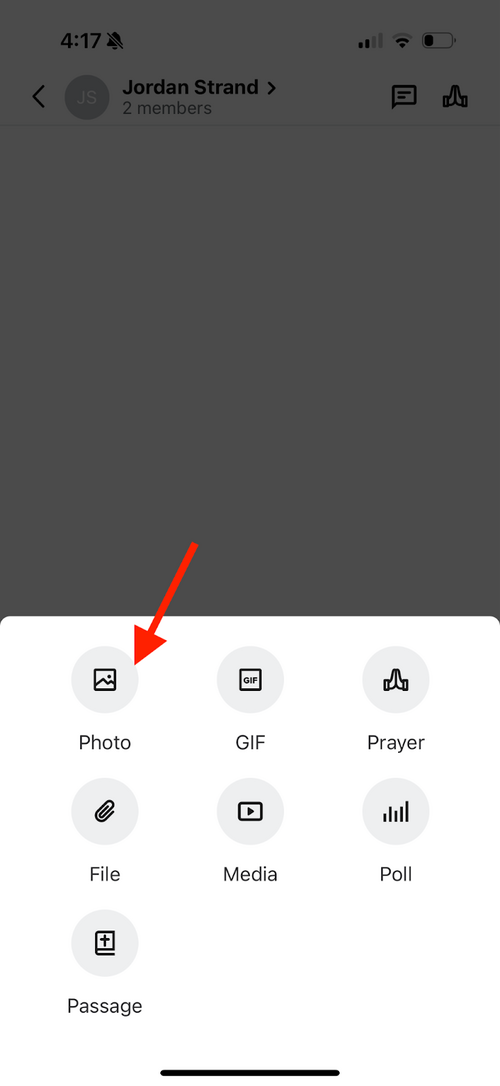
Click the photo button (you will only be able to select one photo from your camera roll):
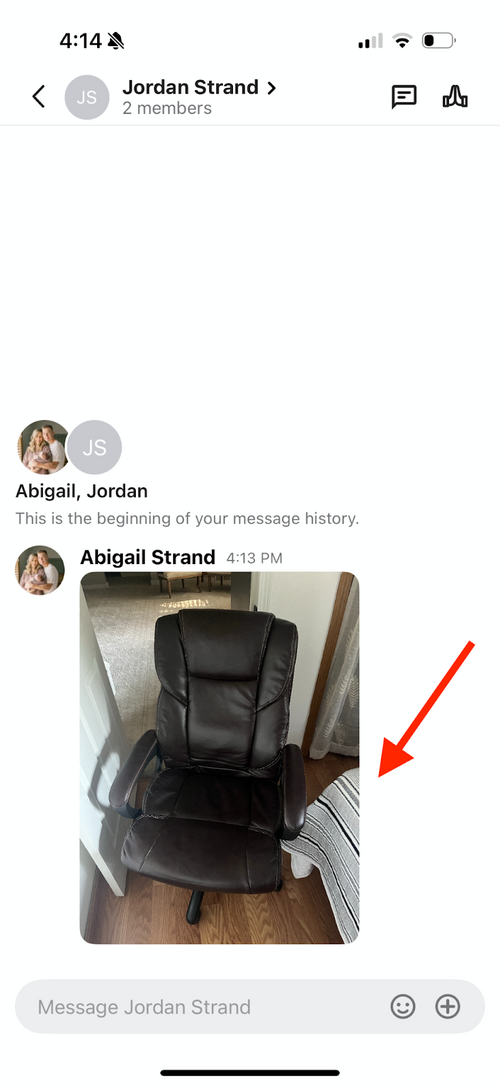
Click to the right side of your photo and hold it down:
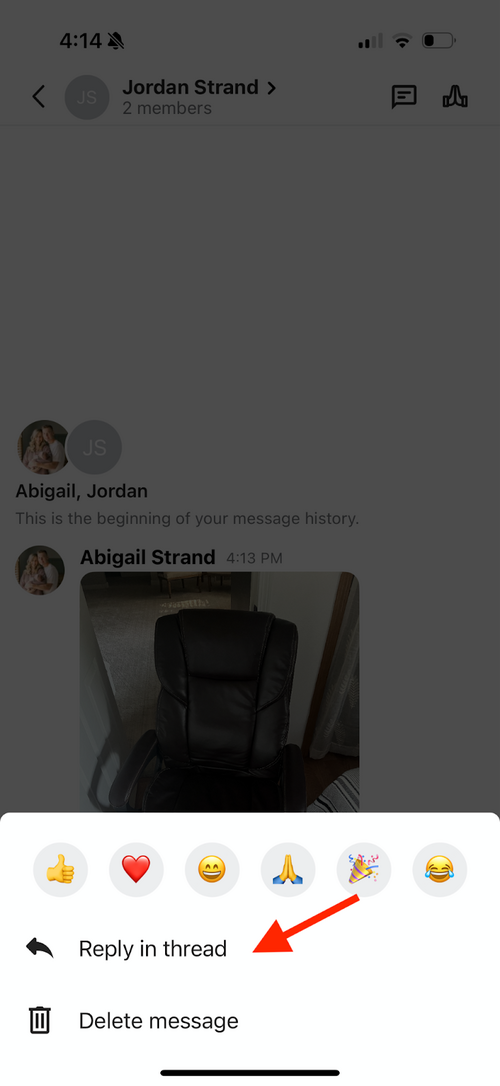
Click “Reply in thread”:
Type your message details or add any more single photos and click the blue arrow. Please note: do not check the “also send to” box:
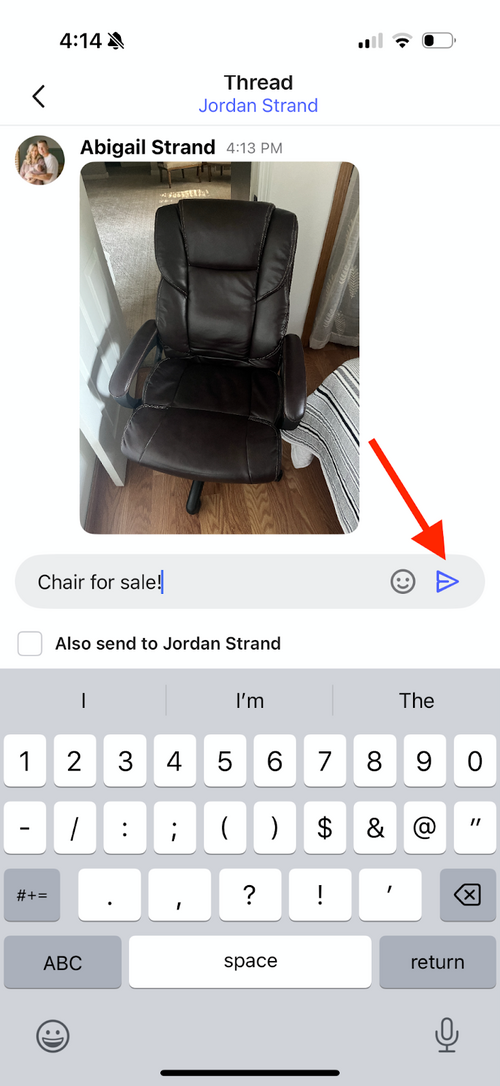
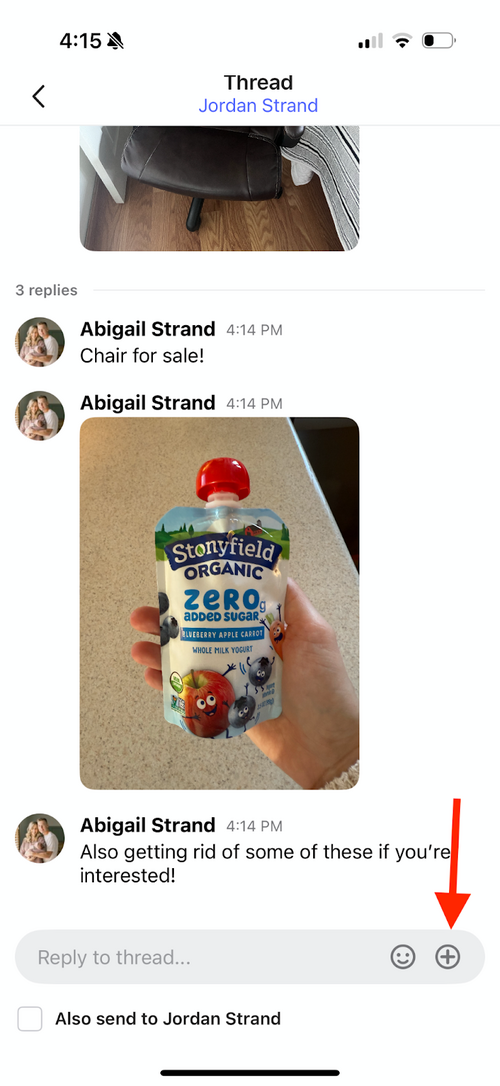
Continue to add photos or text:
Then when you go back to your original post or photo you will see that your additional responses will be called replies:
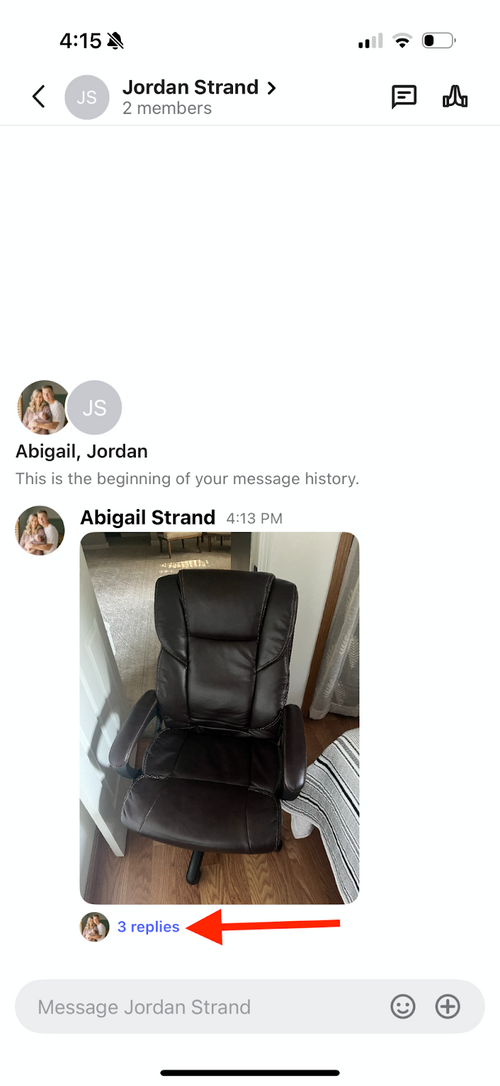
Overall, unlike Facebook, you are not able to add a message to a photo. So, if you would like to post a photo or multiple photos, our recommendation would be to post one photo and then respond in that same thread with more photos or any comments that you would like to include. It is also best to respond to any posts via a reply in that same thread if you are interested in an item.